How to Change Your Theme to Bring Your Vibe to Discord
Clyde
February 19, 2026
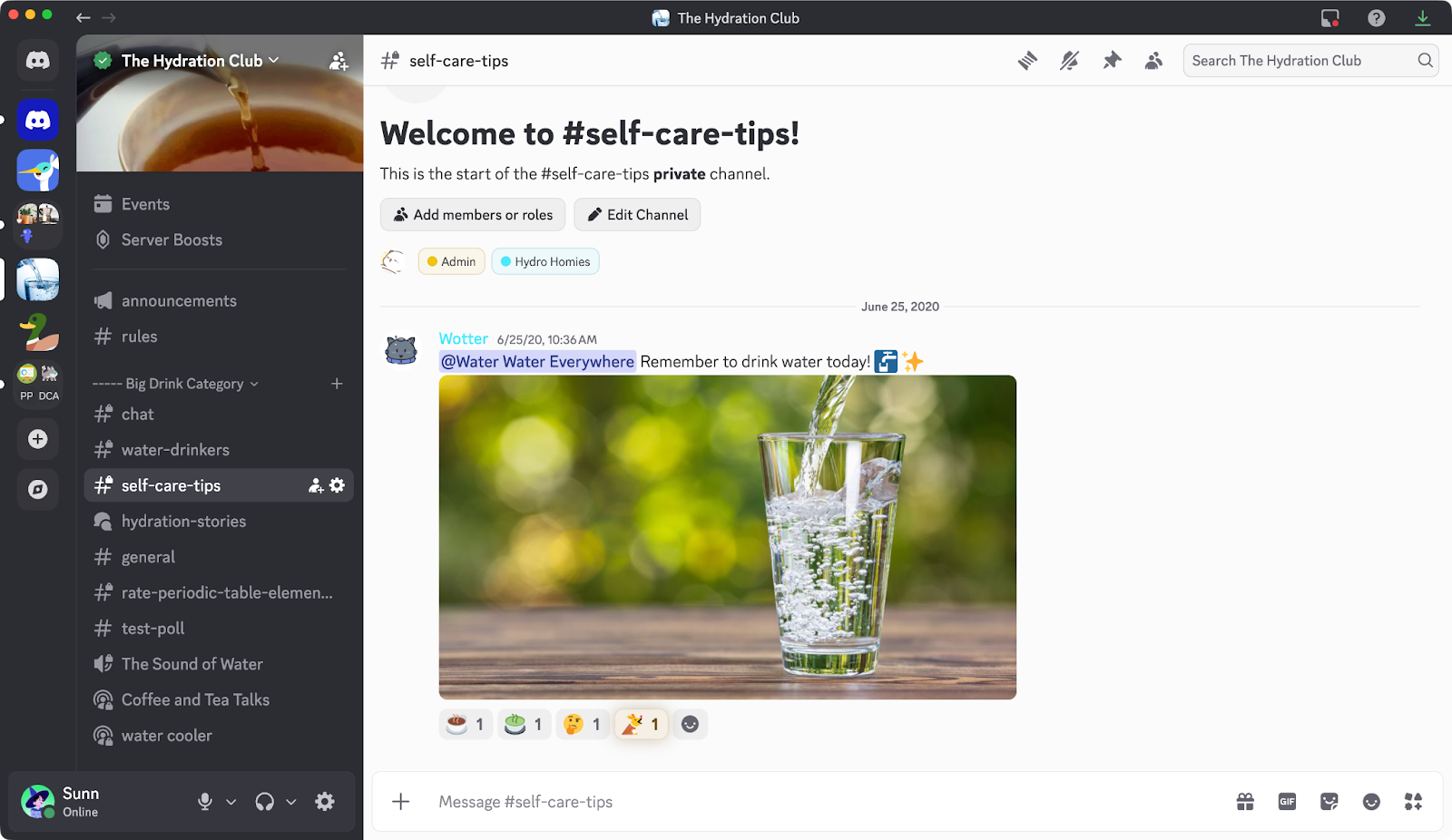
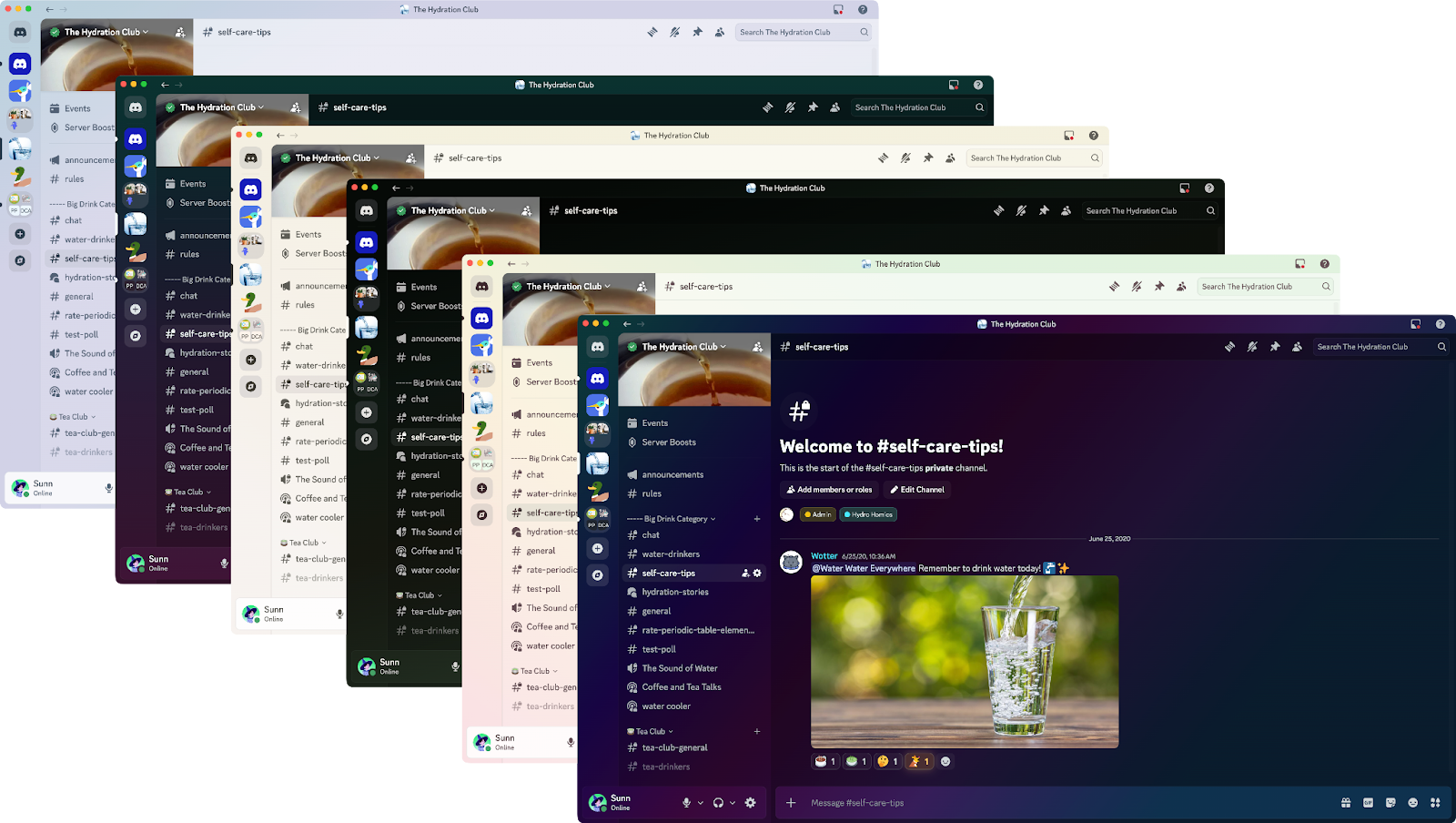
Themes help you bring your own vibe to the app's look and feel on both desktop and mobile! Everyone can pick between four default themes, while Nitro members have access to 28 additional color themes and can even make their own custom theme.
Read on to learn how to pick your new favorite theme — it’s as easy as changing from Light to Dark theme. If you’ve never left the boundaries of Light or Dark theme in your life, you can also read below for a quick refresher. We won’t judge.
How to Change Your Discord Theme on Desktop
Changing your theme on the desktop app is really quick. Honestly, by the time you finish reading this, you could’ve already changed it.
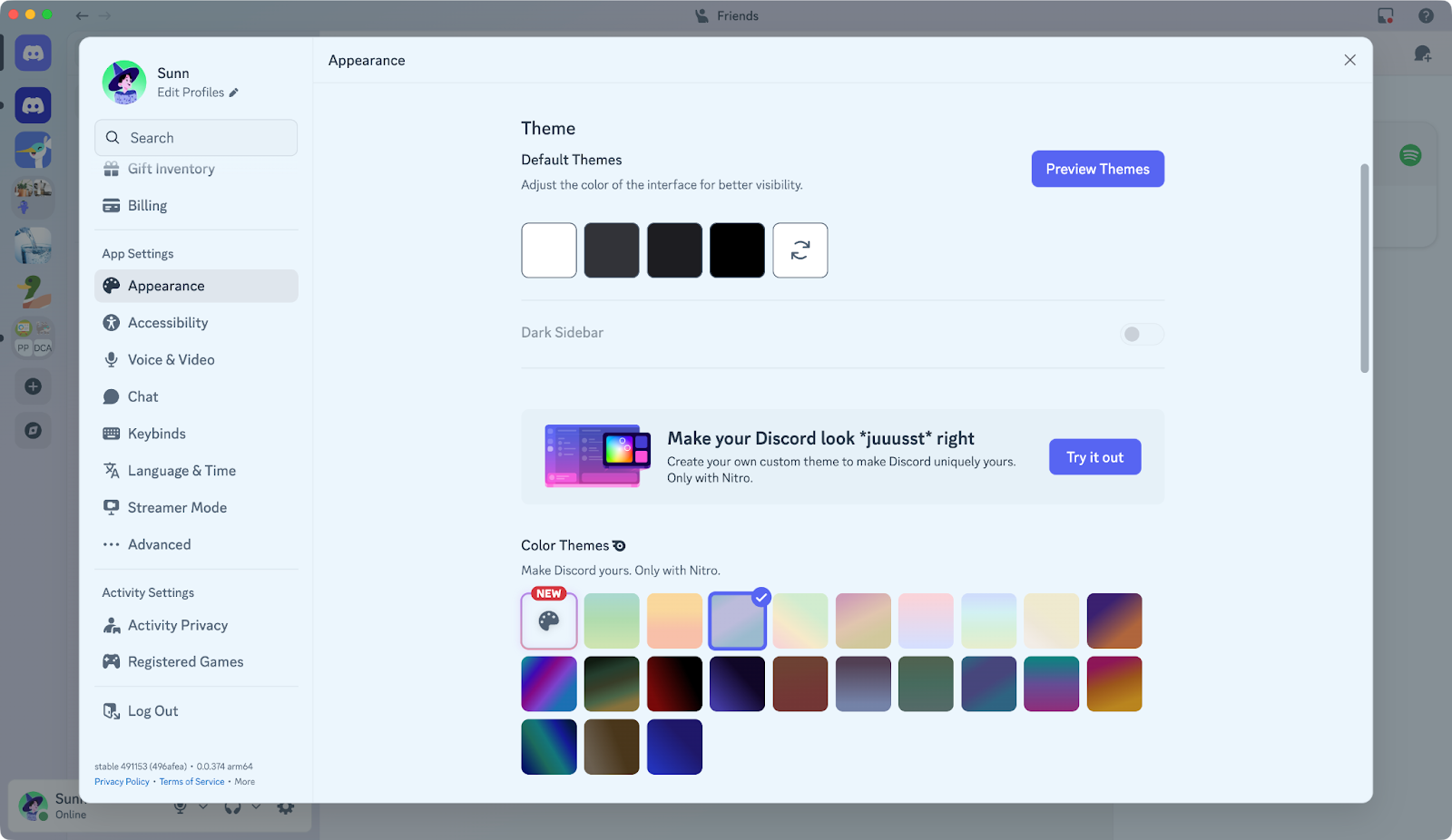
To change the desktop app’s theme, head to UserSettings > Appearance. You’ll see a Themes section, with categories for both “Default Themes” that anyone can use, and “Color Themes” that Nitro members can use! Simply pick a theme, and it will instantly take effect in the app!
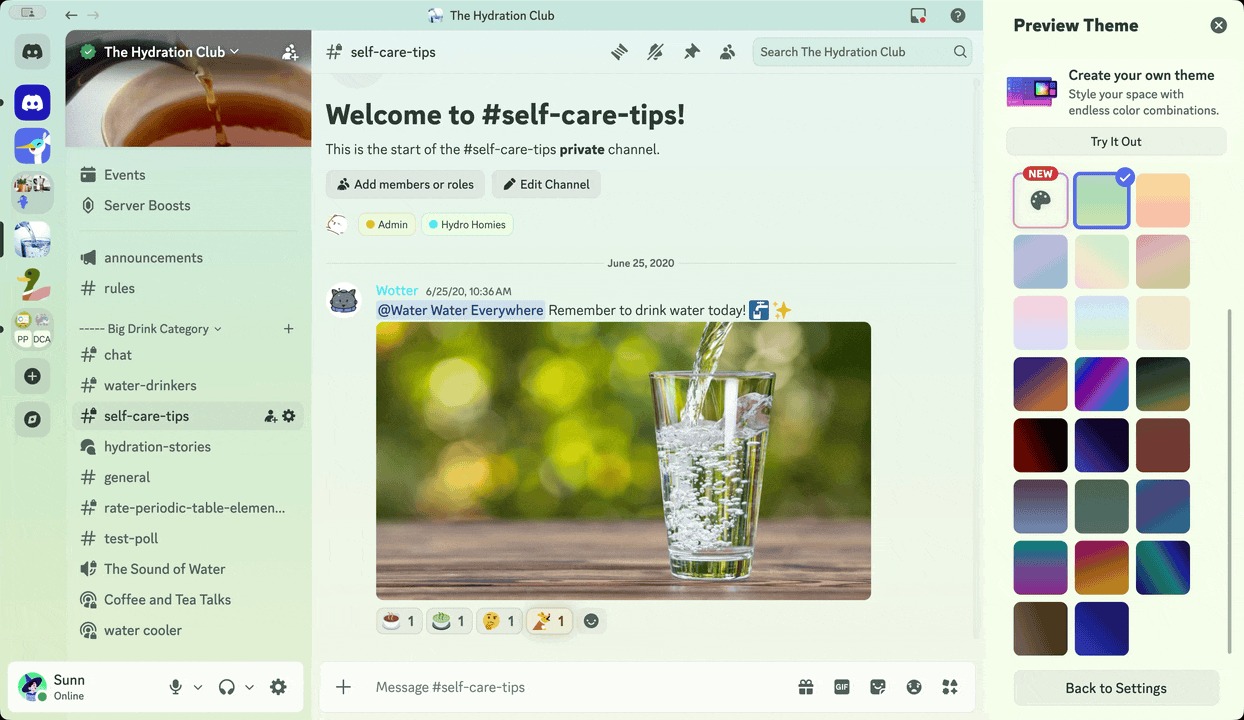
If you wanna see what a specific theme will look like, use the Preview Themes button. You can even preview the Nitro-exclusive color themes, whether or not you’re currently subscribed to Nitro!
How to Change Your Discord Theme on Mobile
Changing your theme makes Discord feel more like you. Or it matches your phone case better. Or your actual phone if you’re brave and go caseless like a monster.
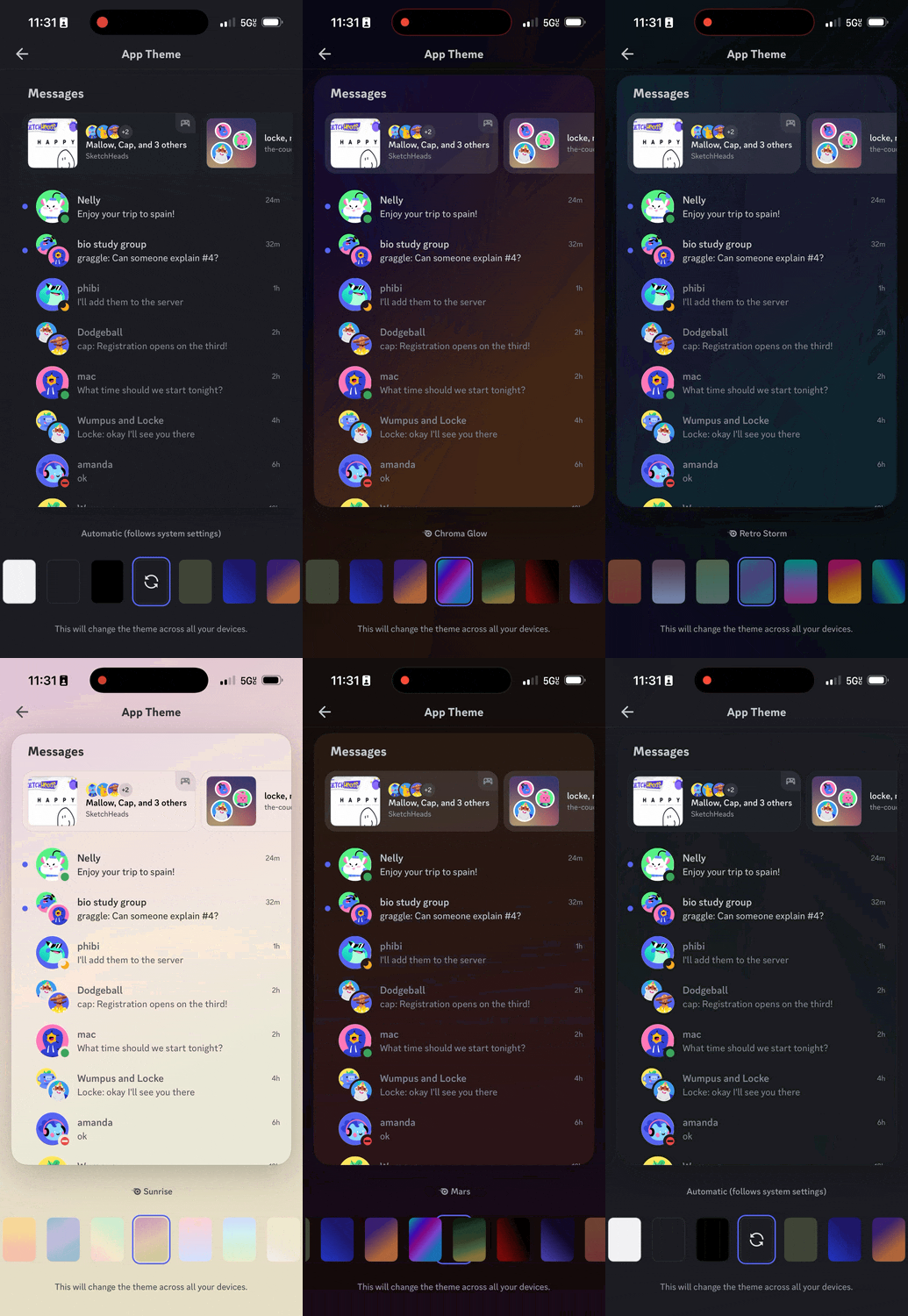
So naturally, the option to change your theme is in the You tab. Go ahead and tap “You,” then press the ⚙︎ logo on the top-right. Scroll down to “Appearance,” then “Theme.”
Here, you’ll choose a theme by scrolling left or right! Land on a color of your choosing, and it’ll be set up!
By default, any theme you pick will be synced across desktop and mobile. Use the “Sync Across Clients” toggle in the mobile app’s Appearance settings if you’d like to use different themes on desktop and mobile.
Which Discord Themes are Available for Everyone?
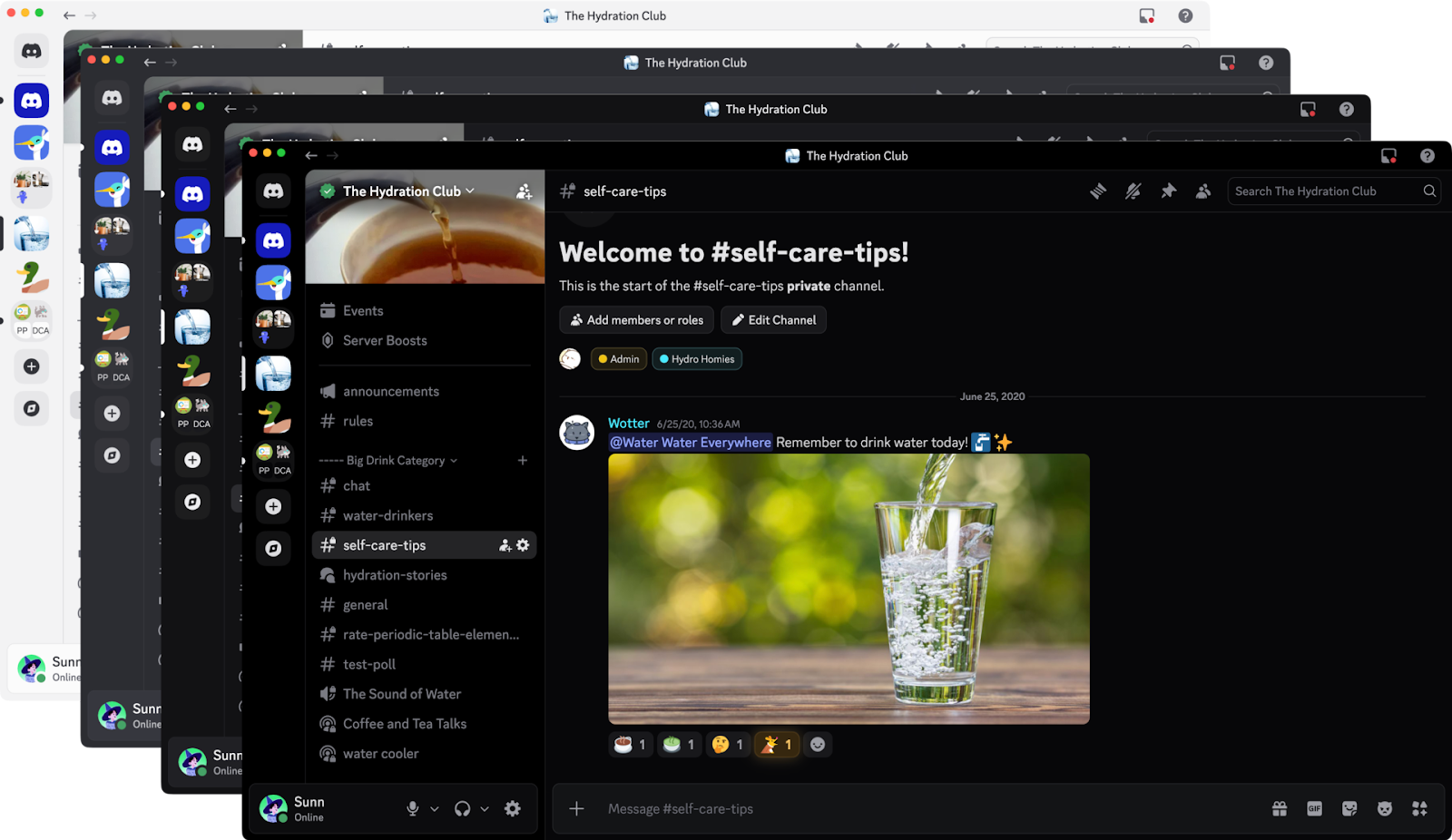
Everyone can pick between four default themes: Light, Ash, Dark, and Onyx.
If you like changing your entire computer’s theme between Light and Dark often, you can also use the “Sync with computer/device” to automatically switch between the two! Everyone knows Light theme is for outdoors ☀️ and Dark theme is for indoors. 🌕 (And if they don’t, I’m starting this trend right now.)
When you’re using Light theme, a special “Dark Sidebar” option will pop up in Appearance settings. This will show your servers, DMs, and channel lists are in Dark Mode, while your conversations are in Light mode. Kind of like a [legally-distinctive black-and-white sandwich] cookie!
What Discord themes are Available for Nitro Members?
Alongside the four default themes, Nitro members can take their pick from 28 additional color themes, including Chroma Glow, Citrus Sherbert, Midnight Blurple, and Retro Raincloud. As you can tell, our Copywriting team had a lot of fun naming them — we had to stop them from using “Wumpus Cassarole” though.
You likely noticed ‘em all when you went to find the rest of the themes, but you’ll find these in the “Color Themes” category in Appearance settings. With so many options, there’s a pretty good chance you’ll find something that matches your vibe.
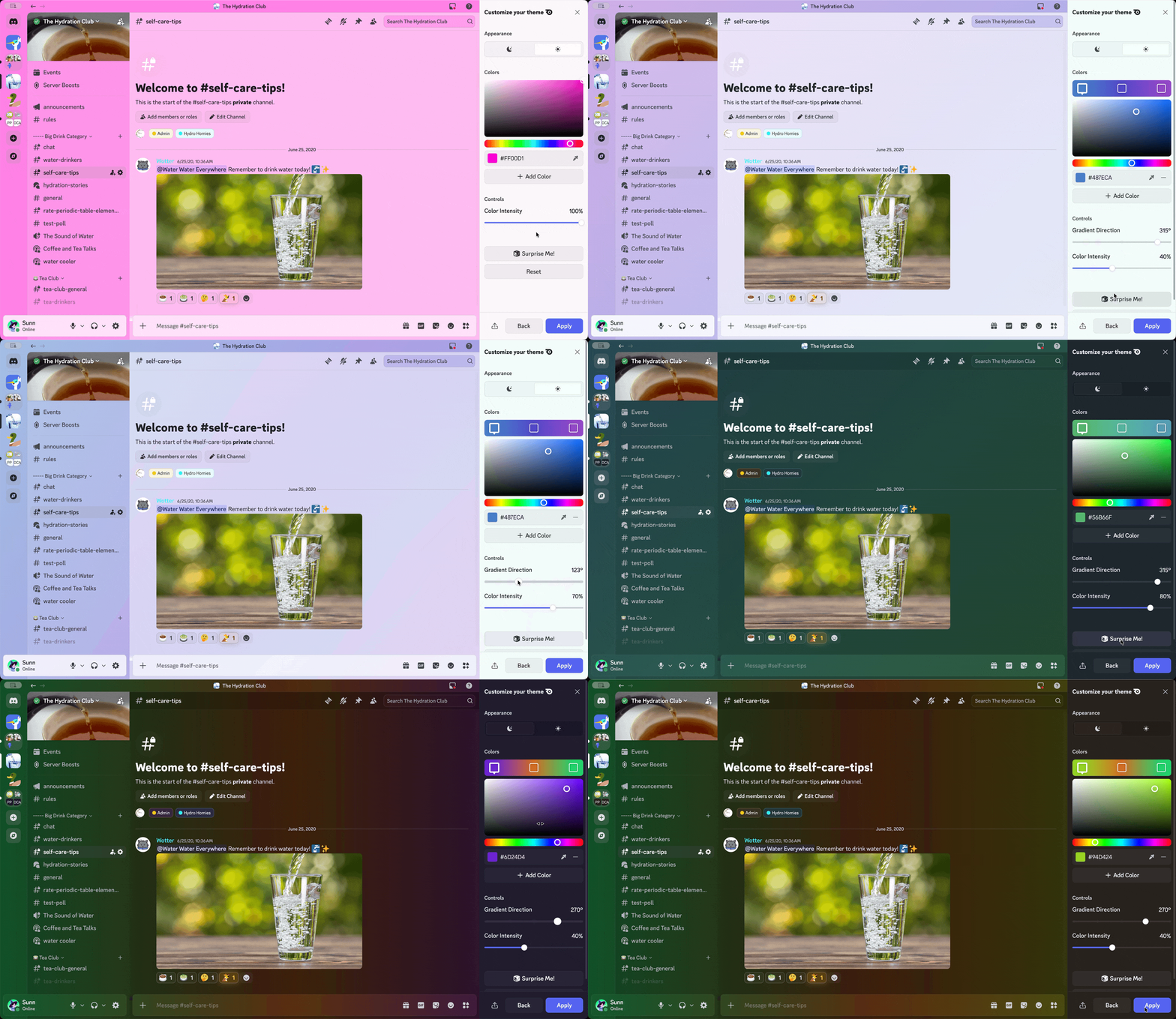
With Nitro, Make Your Own Custom Color Theme
Not feelin’ any of the 28 built-in themes? Do you desperately need a hot pink Discord theme to go with your pink keyboard, pink headphones, and pink RGB lights coming out of your gaming rig?
You can mix up to FIVE colors in one theme — enough colors to prove the five color theorem if you’re an absolute nerd. Or you watch a lot of math videos online.
While you can’t make a custom theme on mobile at the time of writing, the custom theme you make on desktop will sync over to mobile, too!
Cherry on Top: Change Your Discord Theme’s Icon with Nitro
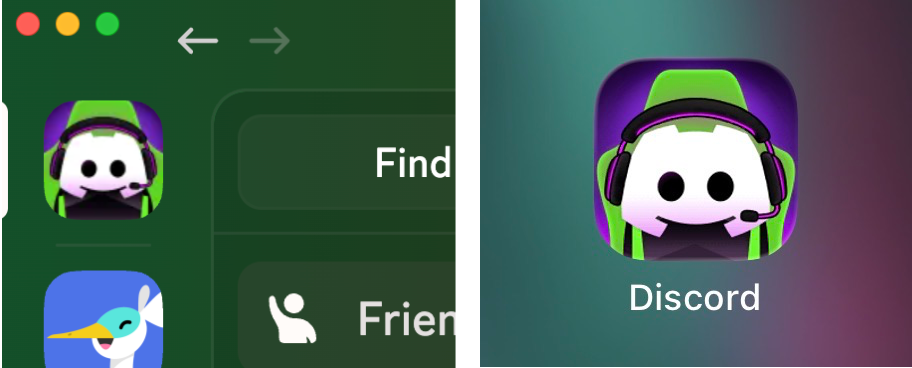
Now that you’ve got the perfect theme set up, there’s oooone last thing you can do to tie it all together like a big ol’ present bow: the app icon! It’s not just an option for the mobile app… you can change it on desktop, too!
Right under the themes is an “In-App Icon” option. There are about 23 options total, including vaporwave, space, and gaming-themed app icons. Picking one on the desktop app will have it appear at the top-left of the app, while picking one on mobile will change the icon on your device’s homescreen!
This setting is per-device, so you can choose a particular icon on your desktop and a different one for your phone or tablet.
And that’s it! It’s sweet, simple, and great-looking — just like you! If you need some additional guidance, we’ve got a Themes-themed support article available for you to peruse.
We'd love to see how these themes complement your desk setup, whether you vibe with Mint Apple or Crimson Moon. Or give us a shout on Twitter, TikTok, or Instagram and show off your app’s new look.
Your personal guide to all things Discord, Clyde is here to support you throughout your experience in the app. Got questions? Pressed the wrong button? Clyde's got your back.












.png)
.png)





Nameplates_BlogBanner_AB_FINAL_V1.png)

_Blog_Banner_Static_Final_1800x720.png)


_MKT_01_Blog%20Banner_Full.jpg)


.png)


